Form Integrations
Webhook
Step 1: Add a New Integration
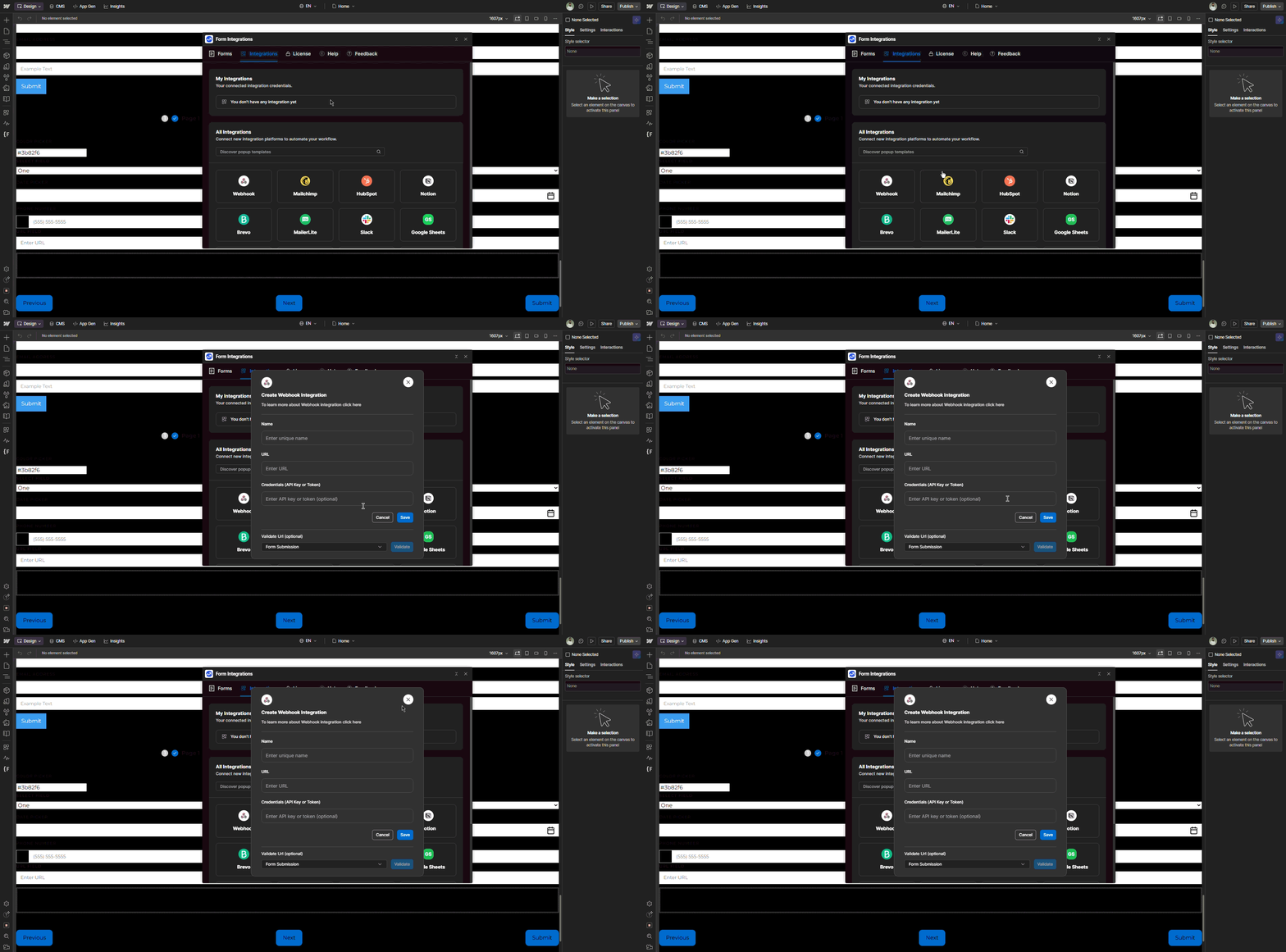
To connect your Form with external services like Webhook, follow the steps below:
- Navigate to the Integrations tab.
- Click the Webhook button to proceed with the setup.
Step 2: Configure Webhook Integration
To connect a webhook, fill in the required fields as follows:
-
Webhook Name
Enter a name to identify your webhook integration. -
Webhook URL
Provide the URL where the data should be sent. -
API Key
Enter your API key for authentication.🔐 If you don't have an API key, you can create and use any custom key of your choice.
-
Validate Connection
Click the Validate button to test the connection with the provided credentials.
If the connection is successful, proceed to the next step. -
Save Integration
Click the Save button to finalize and store your webhook integration settings.
Step 3: Connect Webhook to a Form
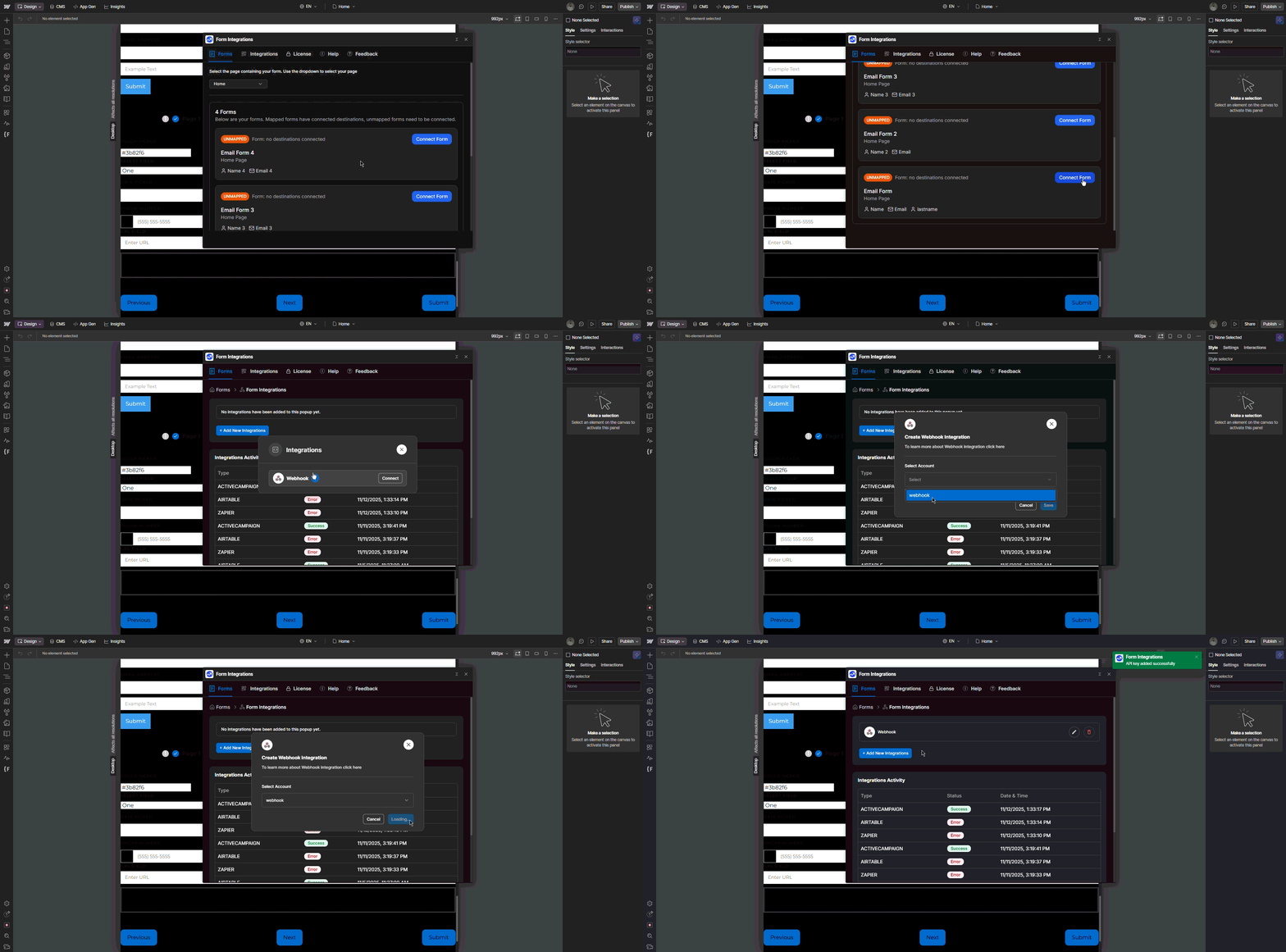
To set up a webhook integration for a specific Form, follow these steps:
- Navigate to the Forms Tab
From the Integrations, go to the Forms tab. - Connect the Target Form
Select the target form page from the dropdown, then click the form’s Connect Form button. - Click “Add Integration”
This will open a modal displaying all available integrations. - Connect Webhook
Click the Connect button next to Webhook.
A webhook connection setup form will appear. - Configure the Webhook Connection
- Select the previously added Webhook API from the dropdown list.
- Save the Connection
Click the Save button to complete the integration setup.
✅ Once saved, your popup will be connected to the selected webhook and ready to transmit data.